How to Add Email Address to Your Profile
Modified on: 2026-04-24 14:56
This article guides users who registered via phone number on how to add an email address to their profiles. Completing this information is essential for setting a login password and accessing products.
TABLE OF CONTENTS
Why should I add an email address?
Currently, accounts registered only with a phone number have the following limitations:
- Security Restrictions: You cannot set a password, enable Two-Step Verification (2SV), or use third-party logins (such as Google).
- Permission Restrictions: You cannot create a company profile or apply for any products.
- Access Restrictions: You will not be able to enter products.
Step-by-Step Guide
Step 1: Access the Personal Information Page
Click on the Profile menu in the left navigation bar to open your account settings page.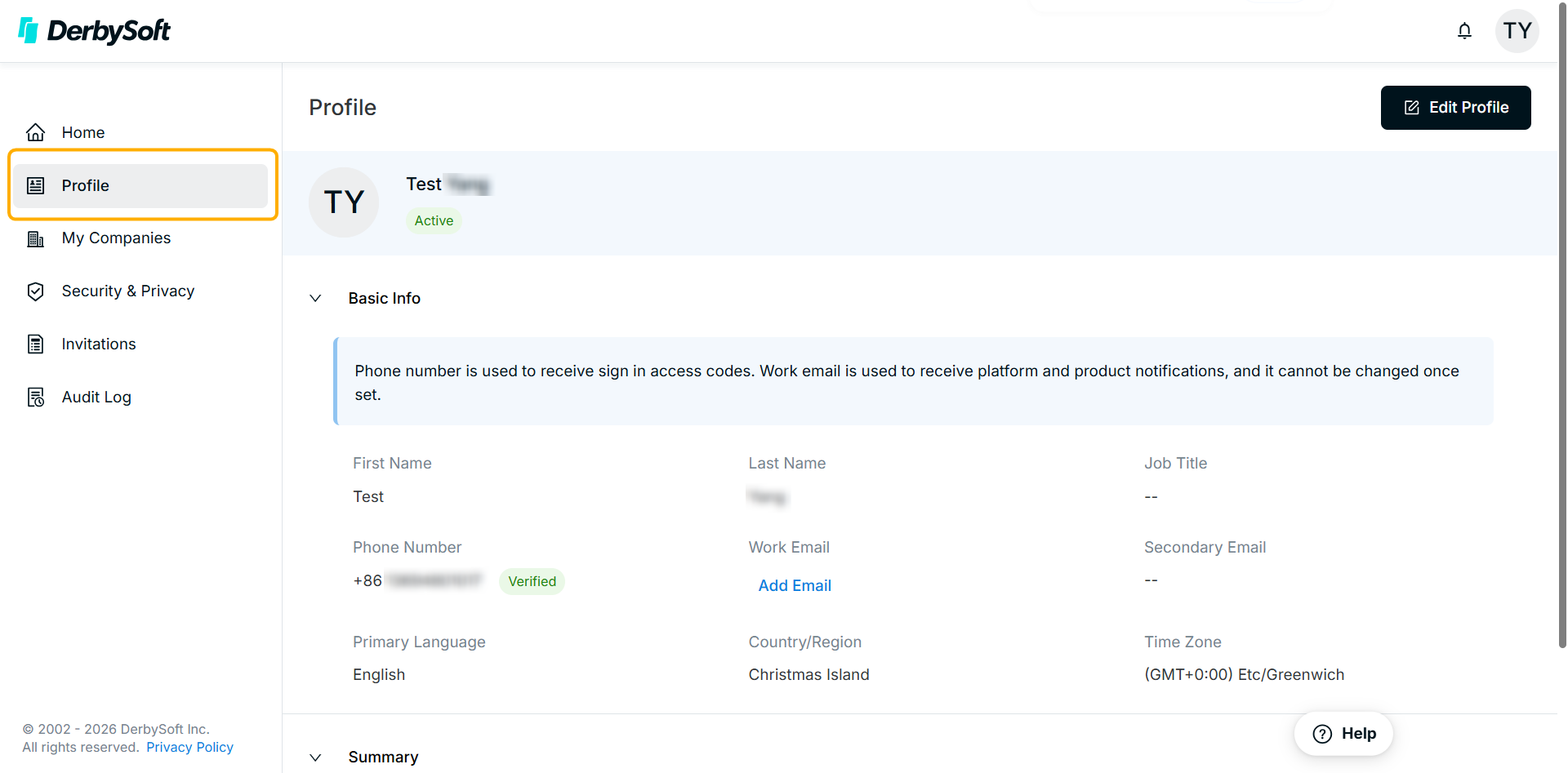
Step 2: Add Your Email
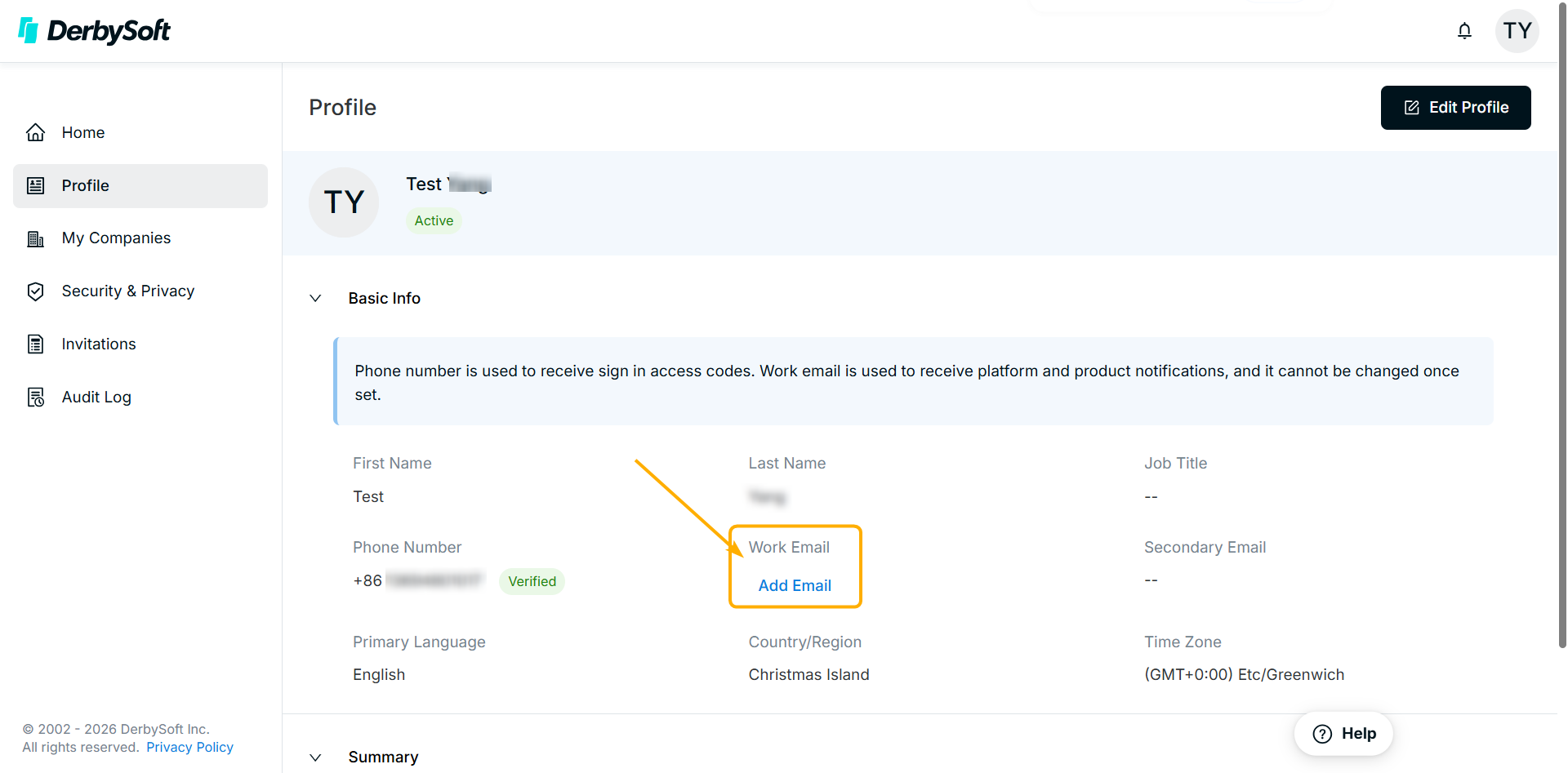
Click Add Email and enter your work email address, then click Next.
Notes:
- Once the email is set, it cannot be modified or deleted.
- You cannot use an email address that has already been registered or used on the DerbySoft platform.
 | → |  |
Step 3: Enter the Verification Code
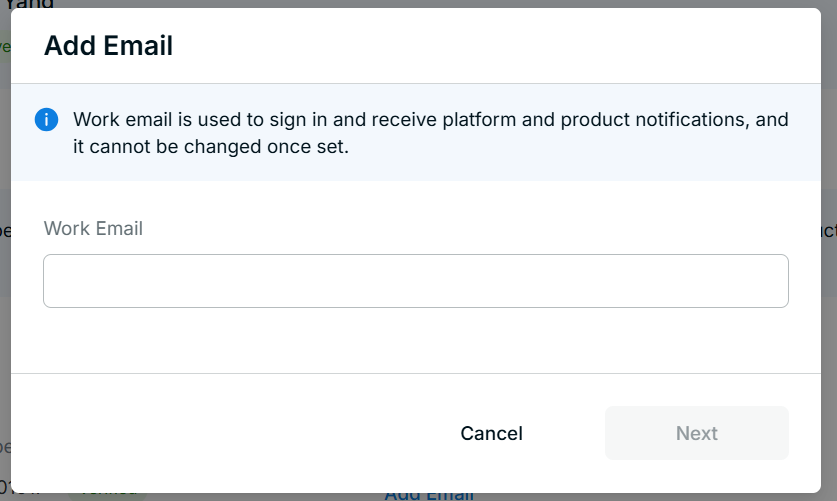
The system will send an 8-digit verification code to the email address you provided. Please check your inbox and enter the code.
- Entered the wrong email? Click Change Email to return to the previous step.
- Didn't receive the code? Please check your Spam folder. If you still haven't received it after the one-minute countdown, click Resend.
Step 4: Add Successfully
Once the correct verification code is entered, the system will automatically complete the email adding process.
Now you can set password for your account, apply for product access and entering products now!
Did you find it helpful? Yes No
Send feedback