Setting Up Password
Modified on: 2026-04-24 15:16
If you registered via phone number and have successfully added an email address, you can follow the steps below to set a password. This will allow you to sign in using the "Email + Password" method in the future.
Step-by-step Instruction:
- Step 1: Access the Security & Privacy Page
- Step 2: Choose a Verification Method
- Step 3: Enter the Verification Code
- Step 4: Set Your New Password
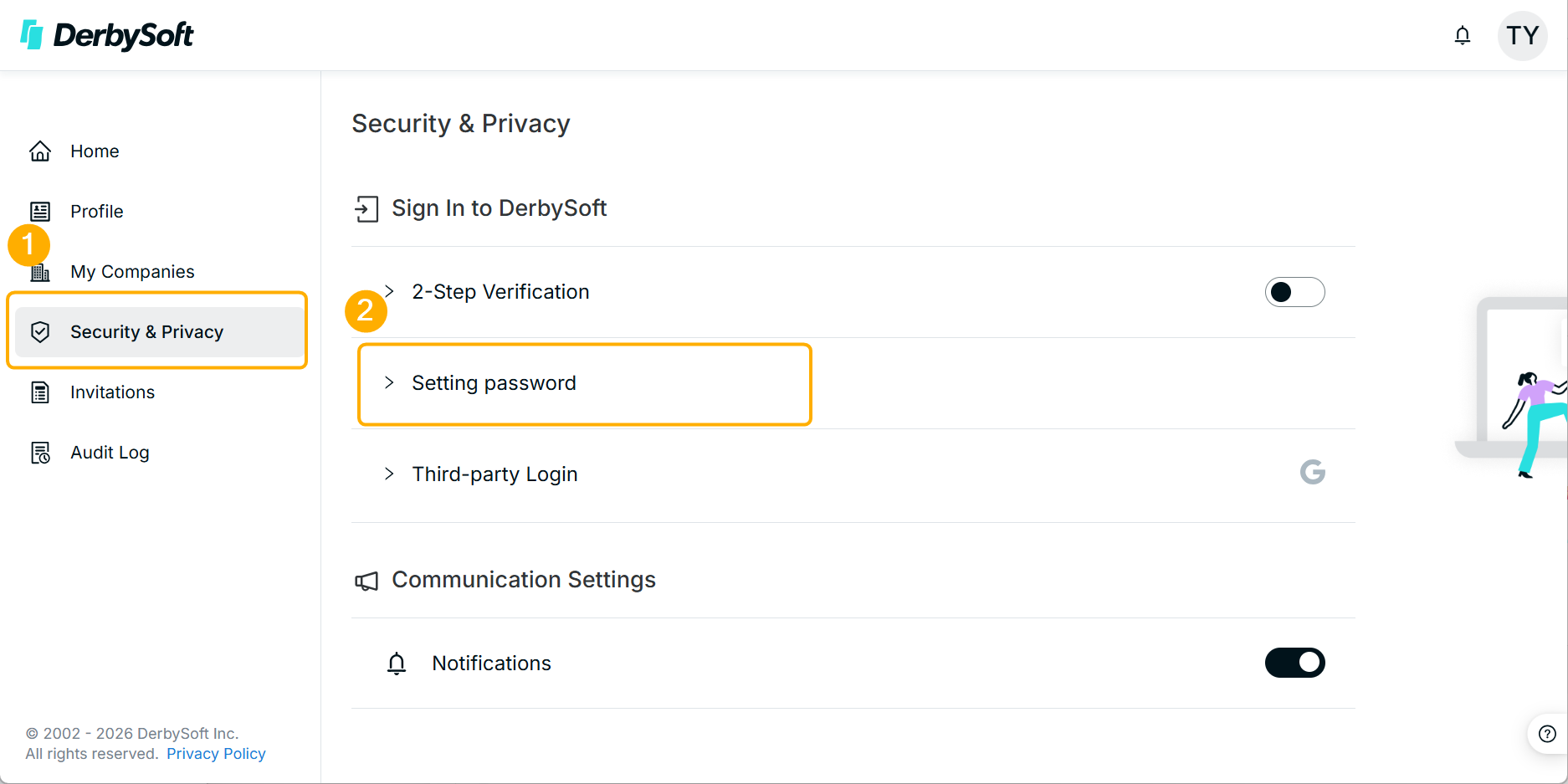
Step 1: Access the Security & Privacy Page
Navigate to the Security & Privacy page-> Settingt Password.
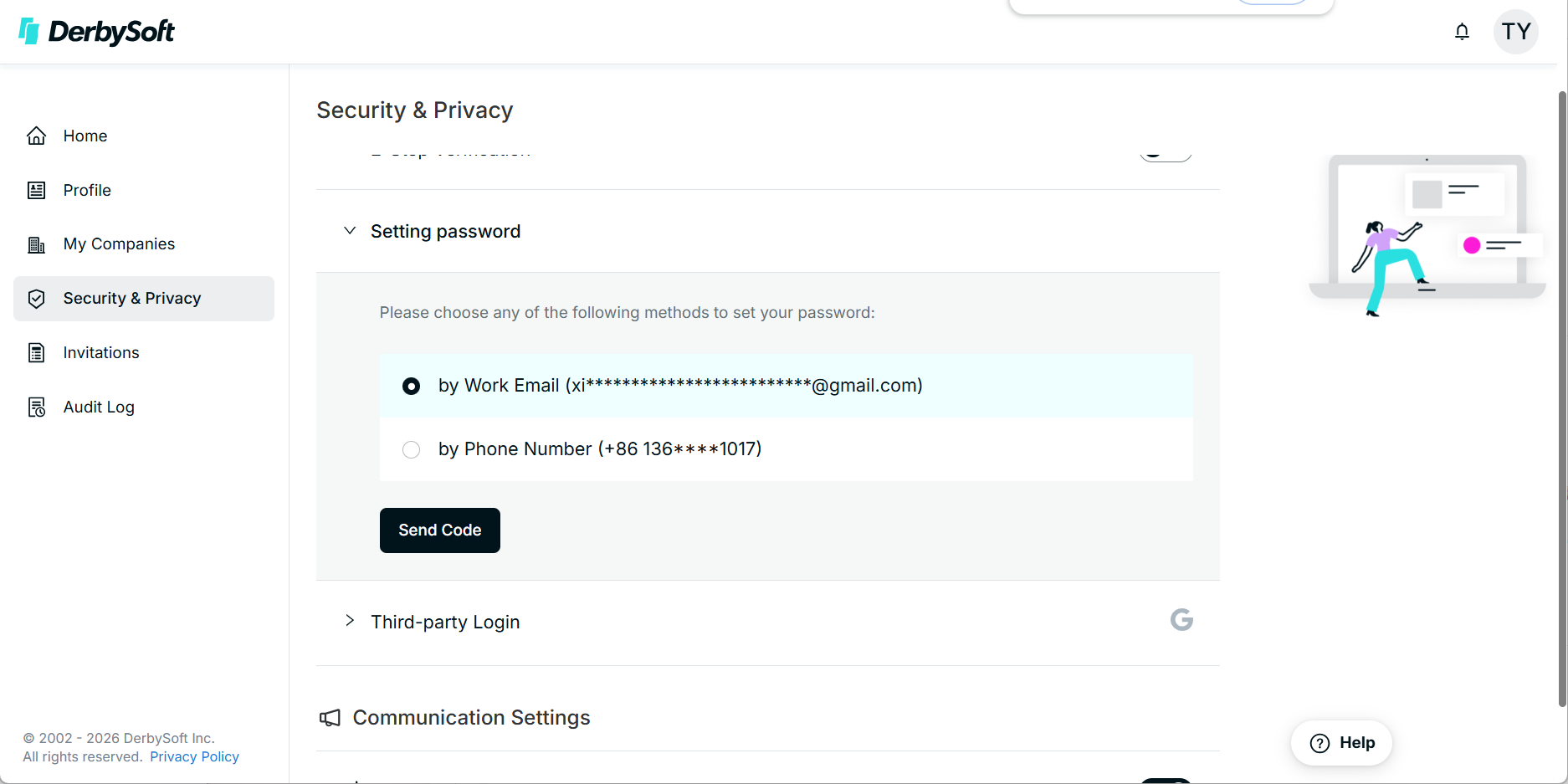
Step 2: Choose a Verification Method
Select your preferred verification method (work email or phone number) and click Send Code.
Step 3: Enter the Verification Code
Enter the verification code received via your phone or email into the input field.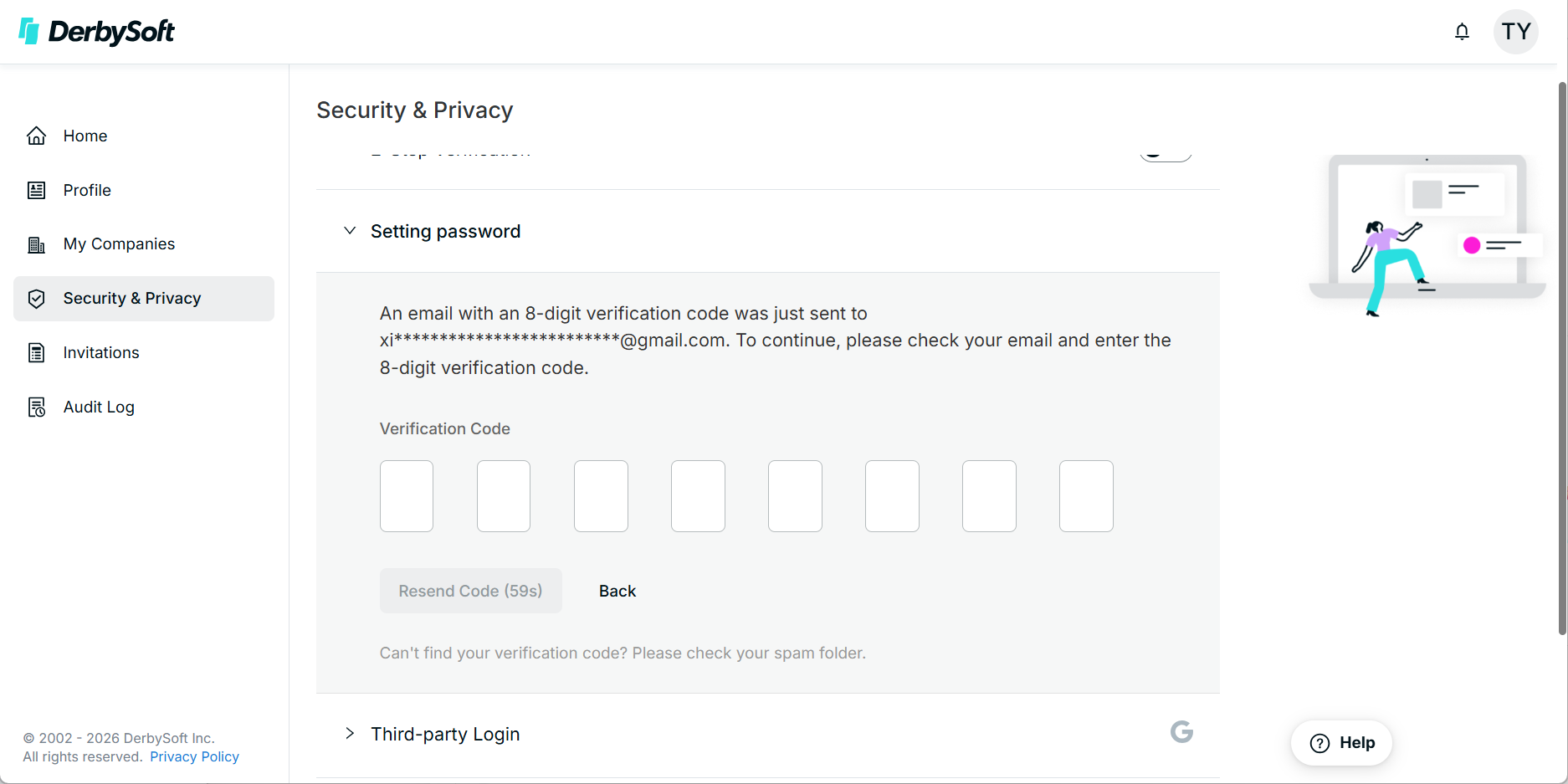
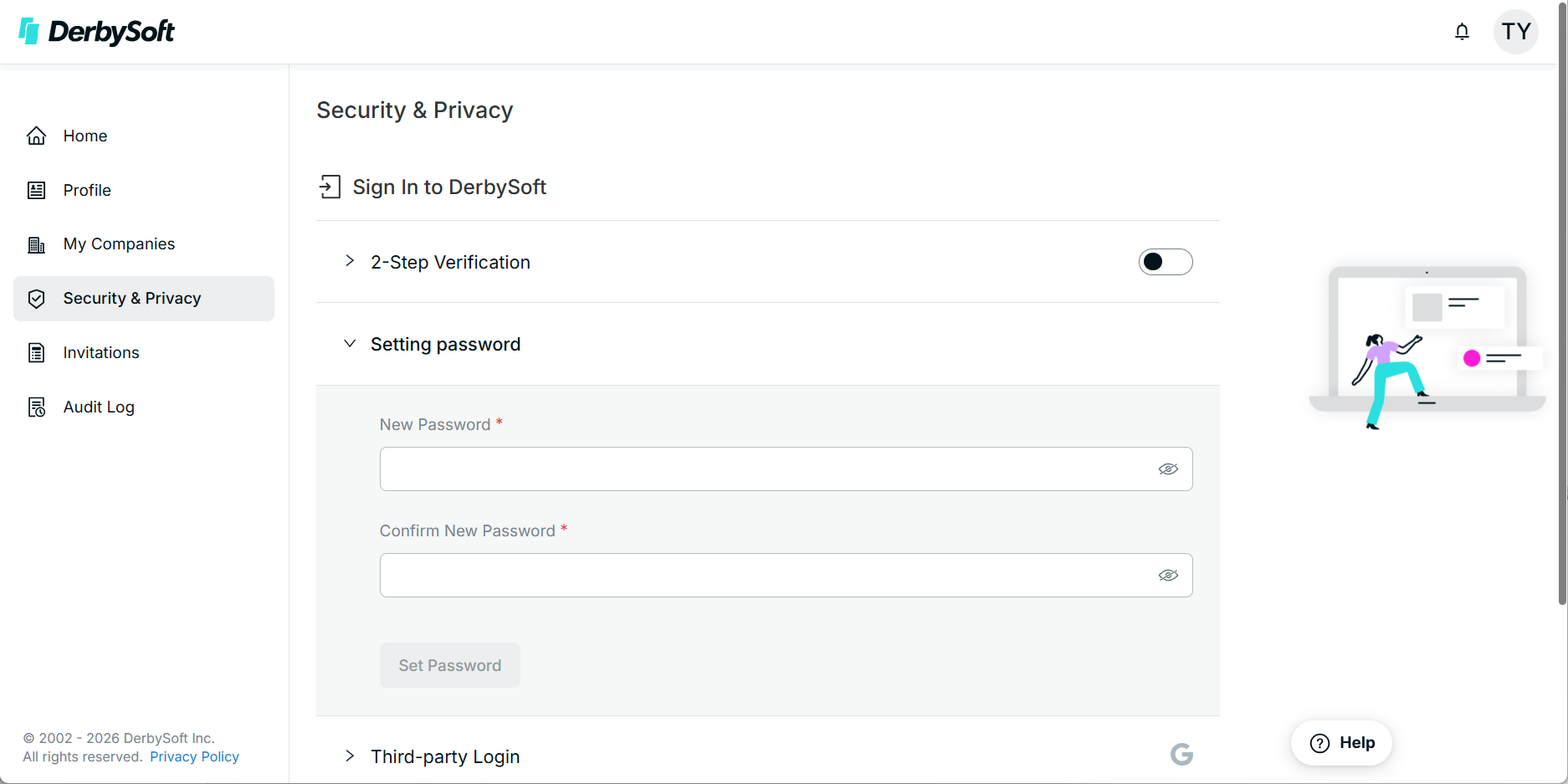
Step 4: Set Your New Password
Enter your new password and type it again to confirm. Click Set Password to complete the process.
Once the setup is complete, you will be able to sign in using your Email + Password in addition to the phone number and verification code method.
Did you find it helpful? Yes No
Send feedback